Ask AI
Create an answer connected to the idea you selected.
How RationalGrid works
Use tools to question, explain, and challenge ideas. Work in connected grids, organise them in My Learning, and build on them with others.
The core loop
Each question starts from an idea already in the grid, so the link stays clear. You choose what to explore next.
Name the question or topic.
See the answer and what led to it.
Ask AI or add your own idea.
Check the idea from more than one side.
Star ideas and save passages.
Step 1 · Ask
Choose a prompt or start with your own. Questions can be practical, philosophical, or simply awkward to ask aloud.
Choices
Should cities use more cameras in public spaces?
Open this questionTechnology
How do websites decide what people see?
Open this questionMeaning
What makes a life feel meaningful?
Open this questionGovernment
Would a basic income help everyone?
Open this questionEthics
Is it wrong to eat meat?
Open this questionTechnology
What should concern us as AI becomes more common?
Open this questionNew grids are public and editable by default. Anyone can read them and, while editing is on, contribute. Sign in before creating one if you want to control access in Settings, and never include sensitive details.
Have your own question?
Start with it now.
Set the grid to Simple, Expanded, or In-depth. New AI answers use that language and depth. Change it later under Grid tools → Answer level.
Step 2 · Read
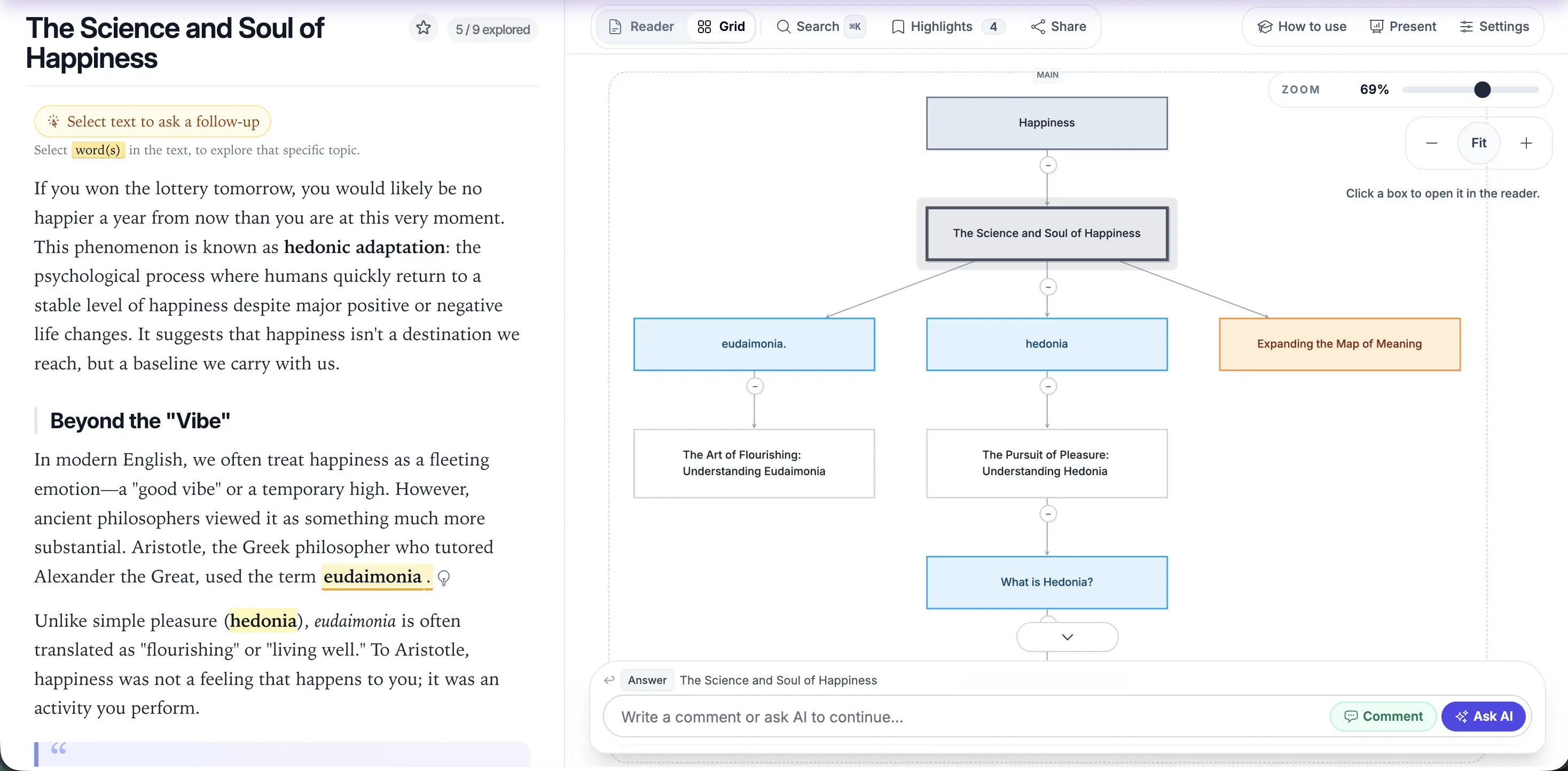
Choose an idea to read it, follow its links, or open a new branch from that point.
Step 3 · Branch
Start from the idea you are reading. Ask AI or add the next step yourself.
Create an answer connected to the idea you selected.
Add your own point, concern, example, or question.
Open focused actions for one sentence or idea.
Explore nearby topics and new directions.
Step 4 · Examine
Select an idea or passage, then choose how you want to check it.
Built for critical thinking
RationalGrid’s Examine tools were developed as a practical critical-thinking framework in collaboration with Philosophy for All and philosopher and educator Peter Worley.
They help you define terms, expose assumptions, test claims, strengthen opposing arguments, and look for what is missing. Each result becomes a connected branch, so the reasoning stays visible and the final judgement remains yours.
What do we mean?
Spot words that could mean different things.
What has to be true?
Find what the idea takes for granted.
Says who?
Check the source, evidence, methods, funding, and uncertainty.
What is the strongest version?
Build the fairest case for the idea.
Is that always true?
Look for examples that do not fit.
Who disagrees?
Find views the current source, community, or AI answer may leave out.
If true, then what?
See what might happen if it is true.
What are we missing?
Find facts or limits that were missed.
What could change?
Try the idea in a different situation.
Match the source to the claim. Look for primary material and original research for direct findings, and strong reviews or consensus reports for the wider picture. RationalGrid asks AI to keep documented fact, interpretation, and speculation separate, but important claims still need checking.
No source is neutral or complete. Make room for dissenting voices and other interpretations, then compare their evidence. Being overlooked does not automatically make a view correct.
Choose Connect another idea, then select a second node. RationalGrid creates a synthesis while keeping both original paths attached.
Step 5 · Keep
Save whole ideas or exact passages as you read. Your profile keeps them together so you can return and see the original text.
Select the bookmark beside an idea. It appears with that grid in your saved thinking, where you can jump back to it.
Select text and choose Save as a highlight. The quote, source, and any note are stored under Quotes and notes on your profile.
Under Settings → Export, download the grid for your notes, as an image to share, or as data for other tools.
Bookmarks and highlights stay private. They do not appear on your public profile.
From map to presentation
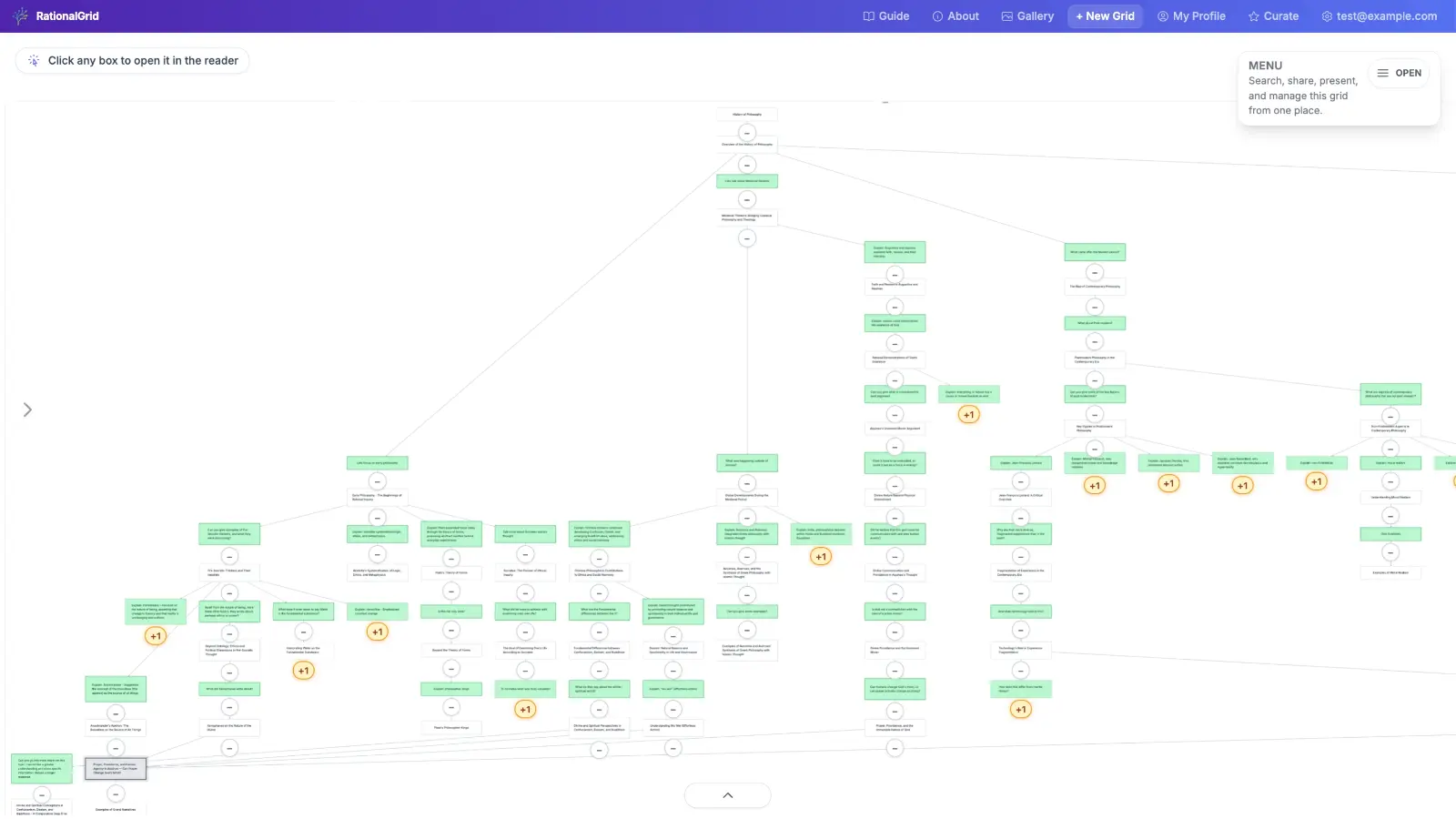
A large grid can hold every branch. A presentation lets you choose the path your audience sees first.
01
Select Present, then click the nodes you want to show.
02
Drag the selected nodes into a clear sequence.
03
Present the path live or send its presentation link.
Step 6 · Share
A grid is a shared workspace, not a finished image. Send its link so other people can see what came before and add to it with you.
Share an editable link so people can branch and comment in the same grid. See who is viewing and use live chat to coordinate. Chat is temporary; add a comment when an idea should remain in the grid.
Under Settings → Collaboration, set Visibility to Public or Private. Anyone can open a public grid. Send a private link only to people you trust.
Your public profile shows your bio and public grids. Share it as a growing record of your work. Private grids and saved ideas remain visible only to you.
Open Settings → Activity to see who added each question, branch, comment, or check. This helps teachers and teams see each person's work.
Select Follow at the top of a public grid. New changes appear in Activity. Use the Following tab to manage the grids and people you follow.
Select a word or passage to save it with its own link. You can also ask about an unfamiliar word, book, or topic. The full passage stays attached to your question.
Start now
Learn the other tools as you go.